Revvity Signals AI MCP Connector
The Model Context Protocol (MCP) is another way you can access Signals AI capabilities from outside the Signals user interface. It allows access to the artificial intelligence behind Signals AI Explorer through third-party AI assistants such as Claude.AI
Getting Started
Follow these steps to connect Signals AI to Claude.AI using the Model Context Protocol (MCP).
Adding the Connector to Claude.AI
- Login at Claude.AI website
- Click the Customize icon on the left navigation bar
- Click on the Connectors section
- Click the Plus Sign (+) near the top of the Connectors panel
- Click Browse Connectors from the context menu
- Search for Revvity Signals AI connector
- Click the Connect Button
-
Enter the address for your Signals AI MCP server
Example MCP address:https://[YourTenantName].signalsresearch.revvitycloud.com/signals-ai-connector/mcpNote: You must replace [YourTenantName] with the name of your Signals tenant.
- Click Connect
- You will be redirected to your Signals login page
- Authenticate with Signals and allow Claude.AI to access your content.
Verifying the Connection
To verify that the connector is working properly:
- Start a new conversation in Claude.AI
- Ask Claude: "Can you access my Signals AI data?" or "Show me recent experiments from Signals"
- If configured correctly, Claude will confirm it can access your Signals data and may show you recent information
You're now ready to use Claude.AI to interact with your Signals AI data!
Prerequisites
- A Claude.AI account (Pro or Team plan required for MCP connector support)
- An active Revvity Signals account with a Signals One subscription
- Your Signals tenant administrator must have enabled the Signals AI Explorer feature of Signals One
Examples
Here are some example prompts you can use with the Signals AI MCP Connector in Claude.AI:
Example 1: Understanding Experiment Context
Prompt:
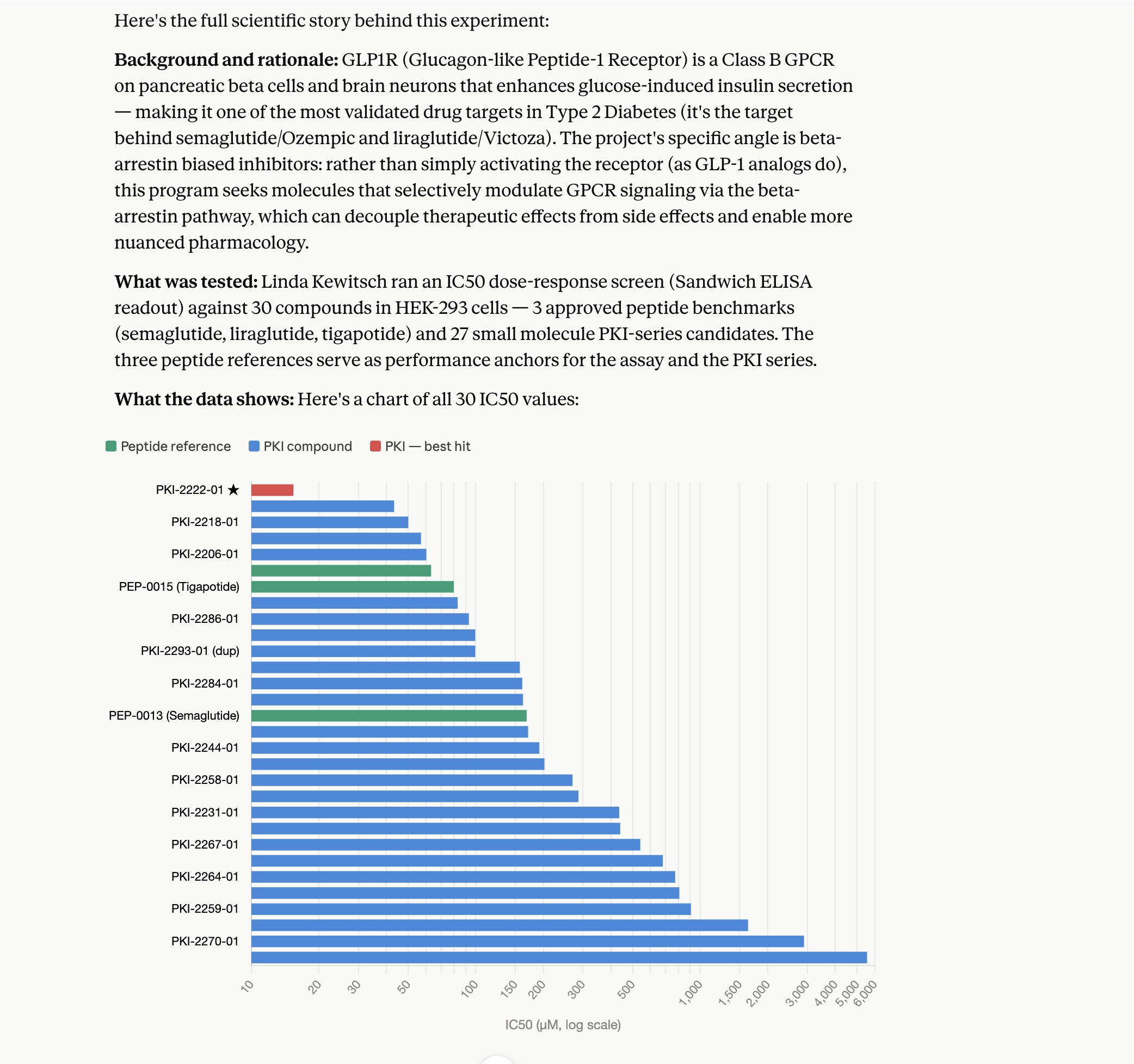
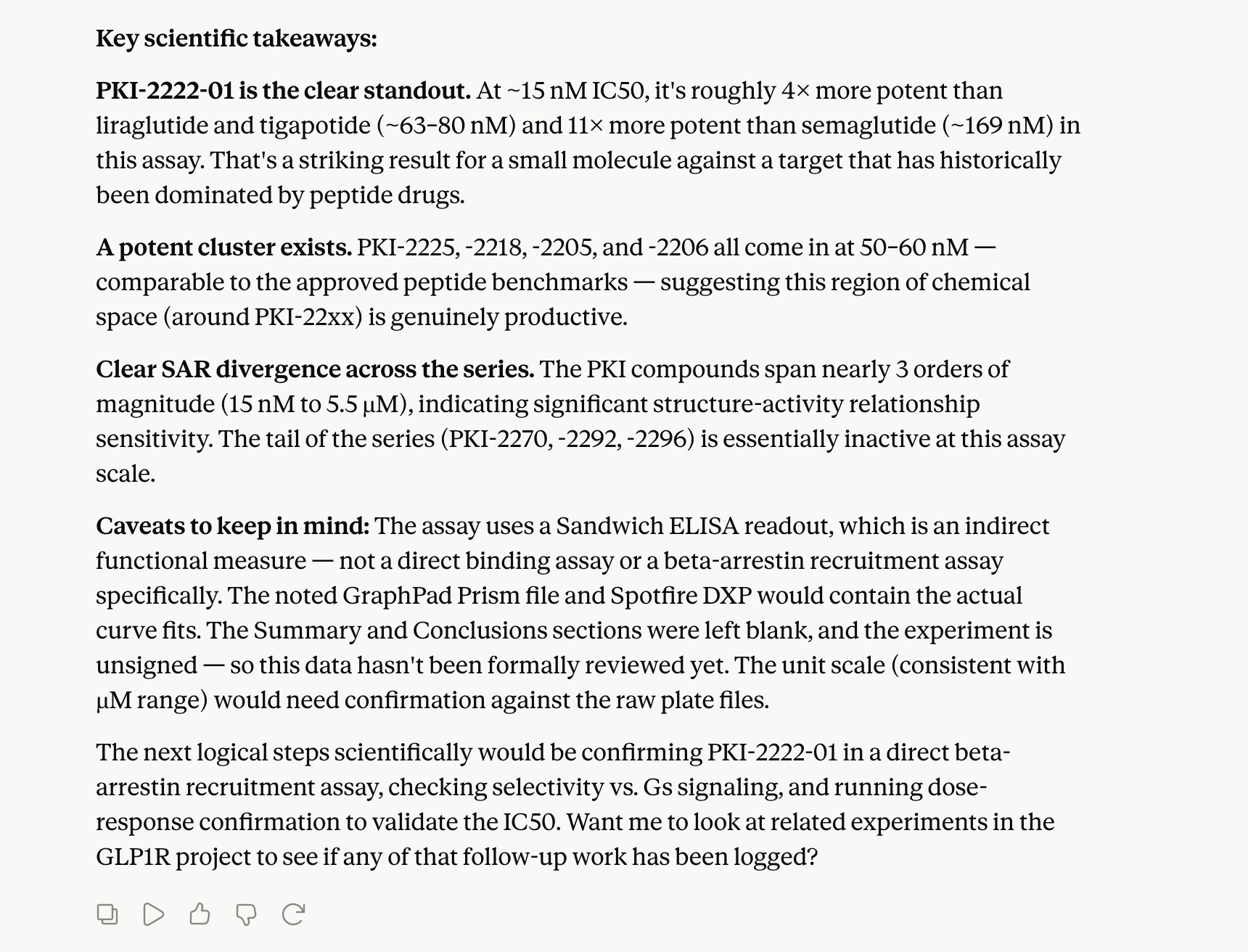
What's the overall scientific story behind GLP1R-KewitschL-3184 Signals Notebook experiment
Output:
Example 2: Checking Pending Tasks and Reviews
Prompt:
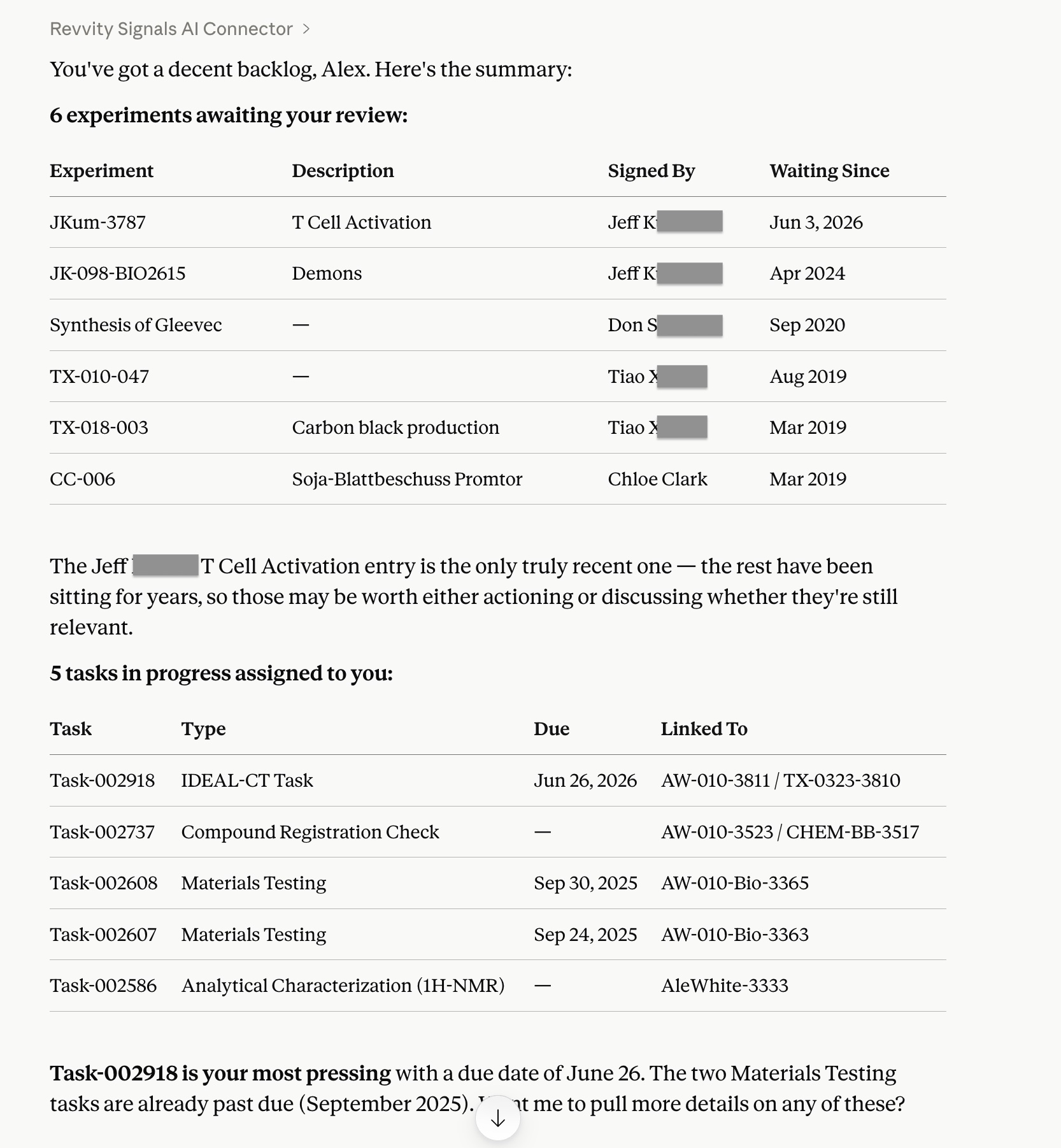
Do I have any pending tasks or items awaiting my review
Output:
Example 3: Statistical Analysis of Data
Prompt:
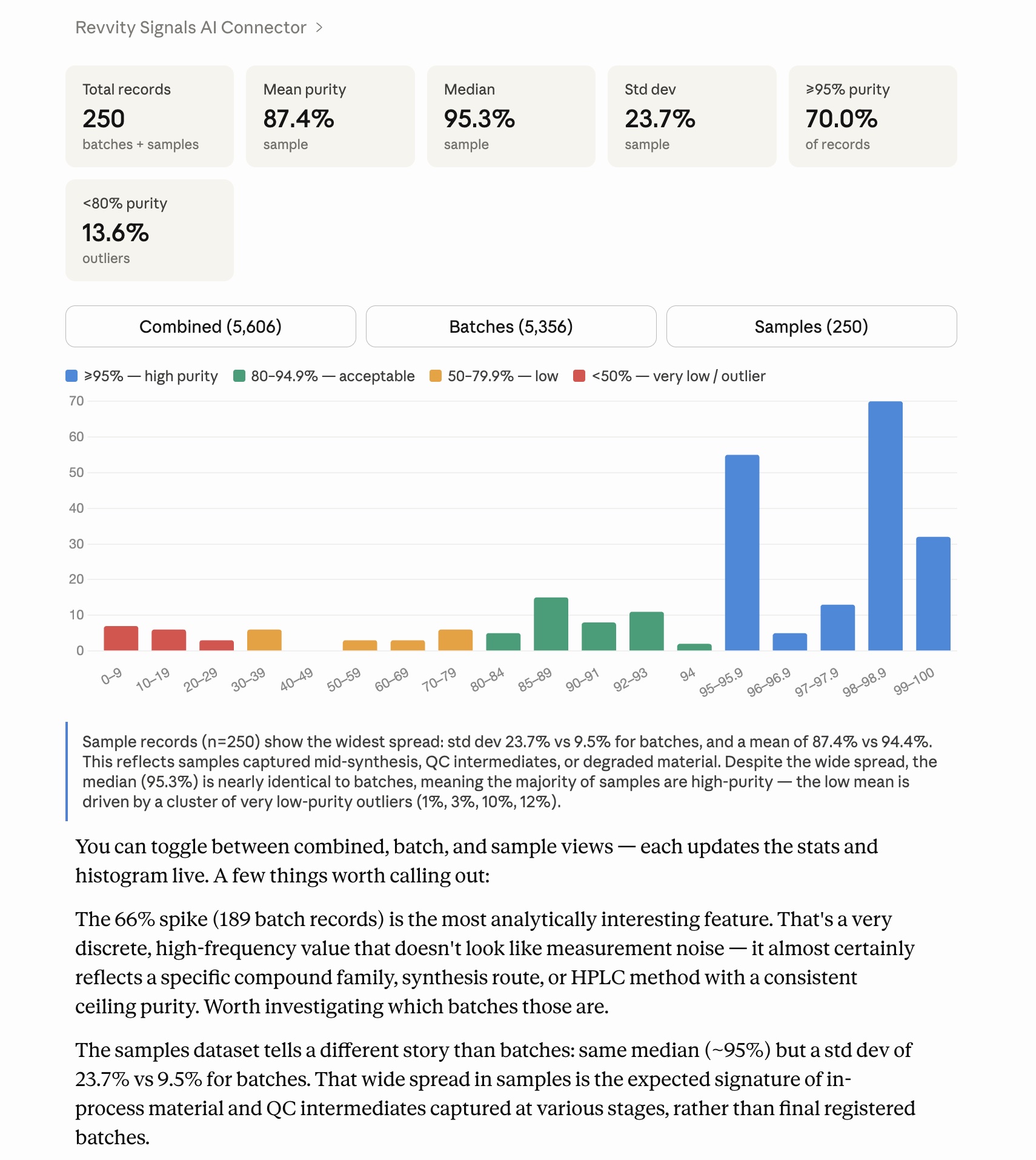
Analyze the distribution of purity values in Signals Notebook and provide key statistical measures
Output: